SolidWorks: PDM Version History

SolidWorks PDM Version History

You’re working on a project in SolidWorks when you realize you or a project partner has made some unwanted changes and saved over any previous versions. It happens to the best of us. Looks like you’ll have to spend extra time remodeling the part to get it back to the way you wanted, just to spend more time now modeling the changes you wanted to make in the first place. Not so fast. If you are working with SolidWorks Product Data Management (PDM), you are presented with multiple options to potentially avoid, or quickly fix problems like this.

Version History

To find the version history of a given file, first, locate it in your vault within your file browser. If you were not working out of the vault initially, unfortunately, you will not be able to go back to any previous versions by adding it after the changes were already made. If you need any help setting up your first vault, see my previous blog post, Intro to PDM, for a walkthrough. Once you have located your file, highlight it and select the “History” button.


Figure 1: Location of Version History

This should then open a page similar to the one shown in Figure 2.

Figure 2: Example of Version History Page

Once this is open, the next step is to determine which version you need to access. The first option to do this is to read through the comments. This can be helpful; however, it can also be unreliable. There is no guarantee that anyone put a comment on when changing an event. If there is a comment, there is no guarantee that it is accurate. If you find a comment that seems inaccurate, you can edit it as seen in Figure 3.


Figure 3: Editing Comments in Version History

Once you are done editing a comment, make sure to select update. The other option for determining what version you need is done using the “View” option. Highlight a part that you think has potential to be what you need, then select the “View” button on the upper toolbar.

Figure 4: Upper Toolbar

This will open an eDrawings preview window of the selected version of a part, with which you can pan, zoom, rotate, and take measurements to confirm roughly whether this is the version you desire.

Figure 5: eDrawing Preview Window

Once you have determined which version you would like to obtain, you are presented with three options. These options are “Get”, “Save”, and “Rollback”. They can be found in the upper toolbar, depicted in Figure 4.

Get

By highlighting an event and clicking the get button, you will retrieve that version to the local cache. The changes and events made after that version will remain in the version history; however, when you go back to your file browser, the part will appear as the version that you selected.

Save

By highlighting an event and selecting the save button, you are presented with the option to save a copy of a given version. You can save this both in and out of the vault.

Rollback

By highlighting an event and selecting the rollback button, you will delete all the events that occurred following the event highlighted. If you attempt to rollback an assembly, you will be presented with the window shown in Figure 6.
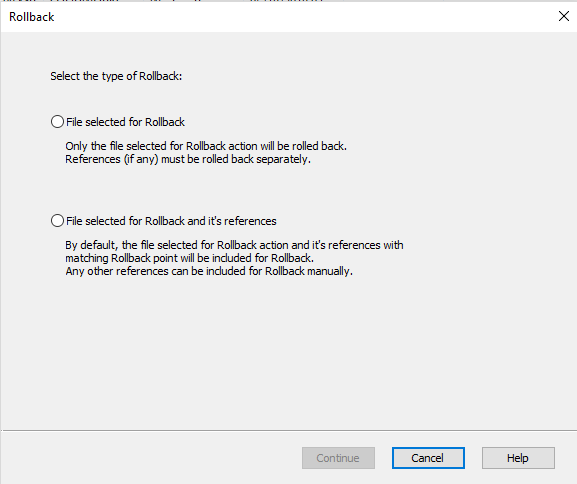
Figure 6: Individual or Reference Included Rollback

Once you have made your selection or are attempting to rollback a part, you will be presented with the window shown in Figure 7.

Figure 7: Rollback Window

Once you have entered your comments and you attempt to continue you will be presented with one final confirmation, making sure you know that all versions after the selected event will be permanently deleted. Check the selection that you understand and confirm the rollback.

Note: If you are working with various projects in different versions of SolidWorks this feature can be especially useful. If you accidentally save a project from an earlier version of SolidWorks to a more recent version, you can rollback to revert it back to a file type that works with whichever earlier version of SolidWorks it is you are working with.

That’s all for now! You now know how to navigate the version history provided in SolidWorks PDM. If you like the content or have questions, signup for our email list to stay in the loop for solutions or weekly content.

Written By: 

PDM: Searching Local Files

Searching Local Files

You’ve been working with SolidWorks PDM and it has worked well for the most part. Lately, you’ve noticed that occasionally the files you’re saving to the vault aren’t showing up. Especially if you’ve been working with step files (.step) or you saved files while working in offline mode. This blog will go over a quick tip that may save you hours of frustration trying to find them or worse, having to recreate them completely.

Searching Local Files

When you’re working in offline mode in SolidWorks PDM you are still able to save files to your vault, even if they were created while you were in offline mode. When you save a file that you created in offline mode, it is added to your local vault view. Once you go back to working online you may notice that the part, that was visible when offline, is now nowhere to be found. Don’t panic quite yet! It may still be there, just in your local vault view. To check, you’ll have to search for local files in the vault. To do this, go to your vault and right-click anywhere where there is empty space. It is preferable that you do this at a higher level, as it will then search through all the subfolders as well, assuring that you have no hidden files anywhere. Once you right click you will see an option, Search Local Files. Select this.


Figure 1: Search Local Files Location

If there are any files that are hidden, a dialogue box will pop up with a list of the hidden files, their location, and the option to add them or not.

Figure 2: Adding Files Dialogue Box

If you have noticed any files missing, it’s worth giving this a try. It takes seconds and it’s not only when in an offline mode that files may not appear. Sometimes, when saving SolidWorks files as step files or when step files as SolidWorks files, they may not appear either. Chances are, searching for local files could be the solution.

That’s all for now! You now know how to search for local files. If you like the content or have questions, sign up for our email list to stay in the loop for solutions or weekly content.

Written By:

SolidWorks: PDM Data Cards

Keeping track of part properties in SolidWorks can be a very tedious task. If multiple properties need to be changed from part to part on a project, it can cut into your productivity, taking time away from further refining your design. Luckily, with SolidWorks Product Data Management, we can remove much of this wasted time with the use of data cards.

Data Cards

Data cards are a feature on SolidWorks PDM that are linked to the data contained in the SolidWorks properties of a part, assembly, or drawing. With these, you can view, and even edit a file’s properties directly from the file browser. They also allow you to search through your design files using properties as search constraints. There is a default data card that is included when you create your vault. It is shown in Figure 1.


Figure 1: Standard Data Card

If this will suffice, then all you must do is add the file extension. Go to the Administration application and under the Cards drop-down in your vault, double-click on Quick Start Data Card. Once the card editor opens, fill in the file extensions you would like it to be applied to under Card Properties, on the right, then save the card in your vault. The extensions can also be filled in while saving. Do not use a period in front of the extensions. In addition, separate each extension by a semi-colon (i.e. sldprt;slddrw;sldasm). If you would like to include the usage for part, assembly, and drawing files, you can copy and paste the previous example. You can omit any of these to serve your purpose if you do not want it applied to all three file types. Your data card is now ready to use. One way of using it comes with saving a new file to your vault. As you attempt to save a new file in your vault, your data card will show up as shown in Figure 2.

Figure 2: Data Card Save Prompt

This popup window will allow you to enter the properties found on the data card for your file. Another way to use the data card is within the file browser. First, navigate within your file browser to find your vault. Once in your vault, highlight the file you would like to edit the properties of and make sure it is checked out before you proceed. Then select the data card tab and you can view and edit your properties right from within this window.

Figure 3: Data Card in File Browser

As you can see in Figure 3, this is not the default data card. If you would like a more customized card, with specified properties you must create your own. To do this, open the Administration application. Then, right-click on File Cards and select New Card… which will open the card editor.

Figure 4: Adding a New Card

Within the card editor, you can add things to your card such as frames, edit boxes, tabs, radio buttons, checkboxes, etc. These can all be found in your toolbox along the top of your card editor page. It should look like Figure 5. You can hover your pointer over any of these selections and a description should appear.

Figure 5: Card Editor Toolbox

Edit boxes are the most useful for properties, as they are linked to properties and can be typed in manually to the user’s preference. To insert an edit box, select the edit box tool and click and drag on your card to whatever size you prefer. Next, you must link it to a property. Whatever you enter in this box is what will show up within your properties on SolidWorks. To do this, select an option from the drop-down variable name drop-down, as shown in Figure 6.

Figure 6: Variable Selection

If there is a variable that you do not see in the list or would like to link an edit-box to a pre-existing variable within your SolidWorks properties, you’ll have to create a new one. Select the button labeled “Variables…”, located under the drop-down menu. This will open the window shown in Figure 7.

Figure 7: Variable Editor

Select New Variable and enter whatever you would like to name the variable in Variable name, then select New Attribute. If you are trying to link a box to a pre-existing property, this step is especially important. Select CustomProperty from the Block name drop-down and then enter whatever you would like the property to be called into Attribute name. If you are trying to link this to a pre-existing property, the attribute name must be the same as the property name that is found in the SolidWorks properties, capitals, spaces, punctuation, everything. Enter as many text boxes as you need for your properties and label them with the Static Text tool and there you have it, all you need for a basic but fully functional data card.

That’s all for now! You now know how to create and use your own SolidWorks PDM data card. If you like the content or have questions, signup for our email list to stay in the loop for solutions or weekly content.

Written By: 

SolidWorks: Introduction to PDM

SolidWorks Product Data Management (PDM)

Team Collaboration, you may love it, you may hate it, but it is often necessary when it comes to coordinating projects among teams. There are many tools and applications designed to go about streamlining this process, however, there are better choices for specific purposes. Here at Perception Engineering much of our work is design work done through SolidWorks. To make our team project collaboration more efficient we have implemented SolidWorks PDM. This blog will go over what that is, some of the functions we have found particularly useful, and how to set up your first vault.

Introduction to SolidWorks PDM

SolidWorks PDM stands for SolidWorks Product Data Management. It is an add-on package that provides you with the tools to manage and coordinate your files while being very closely integrated with SolidWorks. It allows you to create file vaults within your computer’s file explorer that allows each team member, that is appointed access, to check files in and out of on their own computers. Once a vault is created, files can be uploaded and organized into folders within the vault. This program is especially useful for SolidWorks. Team members can check out design files, make their changes, and check them back in. This allows for collaboration on a part without working on the same computer. There are also features such as folder and file data cards which allow you to change your part properties from the file browser; also making it possible to change multiple parts’ properties at once. You can also create workflows to streamline the approval process of a project. With these, you can designate team leaders to oversee the status of a document submitted for approval which will automatically update revisions of a SolidWorks file. More in-depth walkthroughs of these features will be included in future blogs.

Starting a New SolidWorks PDM Vault

The first step to creating a vault within PDM is to open the Administration application, which will most likely be found in your programs file on your computer.


Figure 1: Administration Application Icon

Next, you must add the server that your team plans to work on. This can be done by selecting “File” → “Add Server” and following the prompts. Once this is complete you are ready to add your first vault. To do this you must use the drop-down menu for “SOLIDWORKS PDM Administration” and right click on the option that has your server name and select “Create new vault…”.

Figure 2: Location of Vault Creation

This selection will bring you to the “Create New Vault” wizard. This will walk you through the rest of the steps needed such as selecting the type of vault, naming your vault, and where to place it. Once you reach the “Choose database” page, if your server is not an option on the drop-down menu make sure to type in your server name in the edit box provided.

Figure 3: Database Entry in Vault Wizard

You will then continue through the wizard, choosing the settings that you prefer. Once you reach the “Configure vault” page, it is suggested that you use the predefined configuration, “SOLIDWORKS Quick Start”. Carry out the last few pages of the wizard, select finish and there you have it! Your first SolidWorks PDM vault.

That’s all for now! You now know how to set up your own SolidWorks PDM file vault. If you like the content or have questions, sign up for our email list to stay in the loop for solutions or weekly content.

Written By: